
THE MERCHANT SETUP GUIDE
From install to
your first sheet.
Open 2Gang from Apps in your Shopify admin and follow the Setup checklist. Here’s what each step is for.
01 / SHEET SIZES
Start with the width you print.
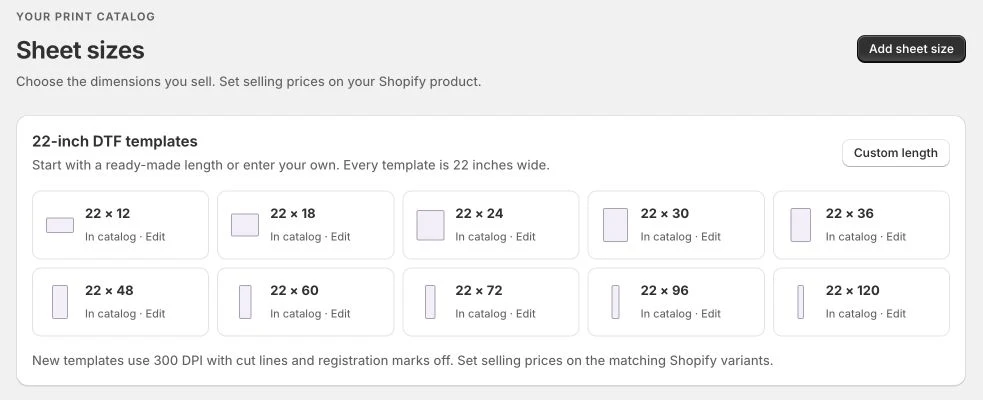
Open Sheet sizes and choose a standard 22-inch-wide DTF template, or create a custom size. Set the length and any relevant print settings. Your size names should be easy for customers to recognize, such as 22 × 24 in or 22 × 60 in.
02 / SHOPIFY PRODUCT
Connect the product you’ll sell.
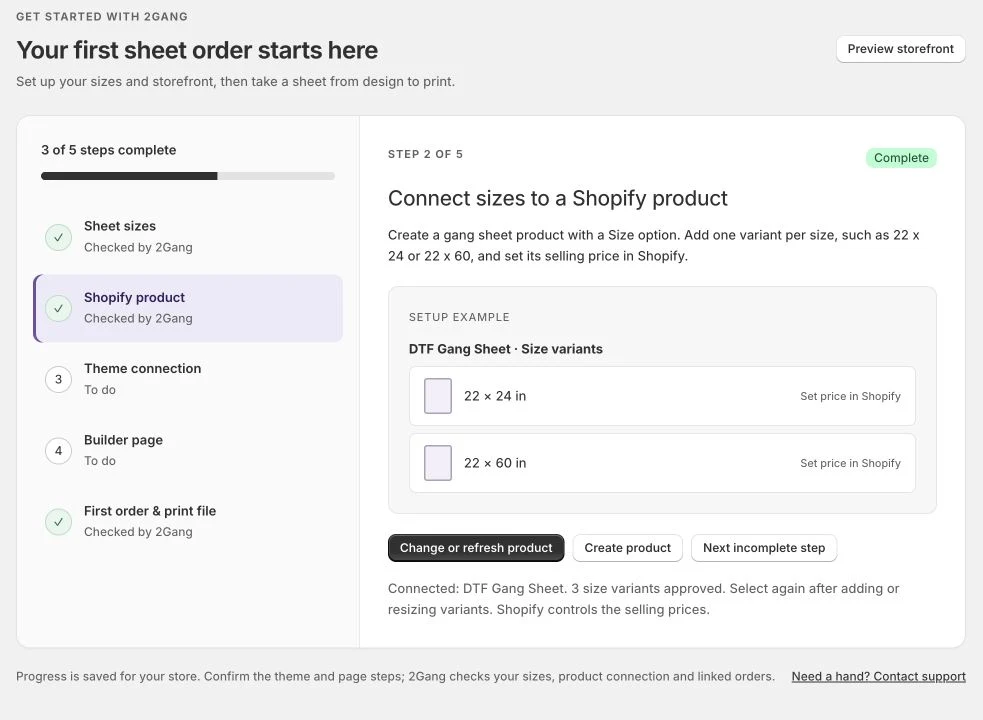
Create a gang-sheet product in Shopify with a Size option and one variant for each sheet size. Set its selling prices in Shopify. In 2Gang Setup, select that product to approve the variants used for gang-sheet orders.
If you add or resize variants later, return to Setup and refresh the product connection. Make sure each sheet size matches the correct Shopify variant.
03 / THEME & BUILDER PAGE
Put the builder in your storefront.
Use Open theme editor in Setup. Enable the Gang Sheet Builder app embed, choose the same Shopify product you connected in the previous step, then save your theme. Follow the builder-page instructions in the app and preview the result.
Check the product, sheet sizes and selling prices before making the page visible to customers. The theme and page steps are merchant-confirmed: mark them complete only after checking your storefront.
04 / THE FIRST ORDER
Walk through it like a customer.
- Upload a sample design and set its printed dimensions.
- Add copies or text, then arrange the sheet.
- Review the whole sheet and resolve artwork warnings.
- Add it to the cart and confirm the preview, size, quantity and price.
- After a paid order, find the linked sheet in 2Gang and download the print file.
Check dimensions, transparency and your printer/RIP settings before production. Run a small physical print test for your own workflow. Use Shopify’s approved test-payment workflow on a development store when testing without real charges.
WHEN SOMETHING NEEDS ATTENTION
Keep the order and the sheet together.
Review order status and refund warnings before printing. A partial refund needs a quantity check in Shopify. A fully refunded order should not be printed as a new paid job; use a replacement order for new work.
If an AI tool is unavailable, check its status and your usage limits under Plan. You can continue with the original artwork and review it manually.